
Ubuntu 16.04 LTS final will be released today in a couple of hours.
And the final beta of Ubuntu 16.04 LTS is released and is available for testing.
In this tutorial, let us see how to upgrade to Ubuntu 16.04 LTS from Ubuntu 15.10 and older versions.
Note: Beta release is only for development and testing purposes. You should not use it in production environment. And, do't forget to backup your important files.
Before going to upgrade, we need to update the system.
Open up the Terminal and enter the following commands.
sudo apt-get update && sudo apt-get dist-upgrade
The above command will download and install the latest available packages.
Reboot your system to finish installing updates.
sudo reboot
Now, enter the following command to upgrade to new available version.
sudo update-manager -d
Software Updater window will show up and it is going to search for the available new release.
After a few seconds, you will see a screen like below that saying:
“The software on this computer is up to date.
However, Ubuntu 16.04 LTS is available now (you have 15.10)”.
Click Upgrade button to start the upgrade.
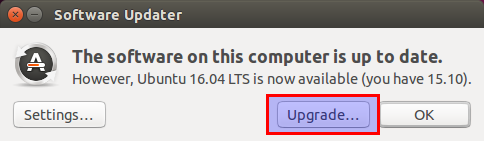
Then, Click Upgrade.
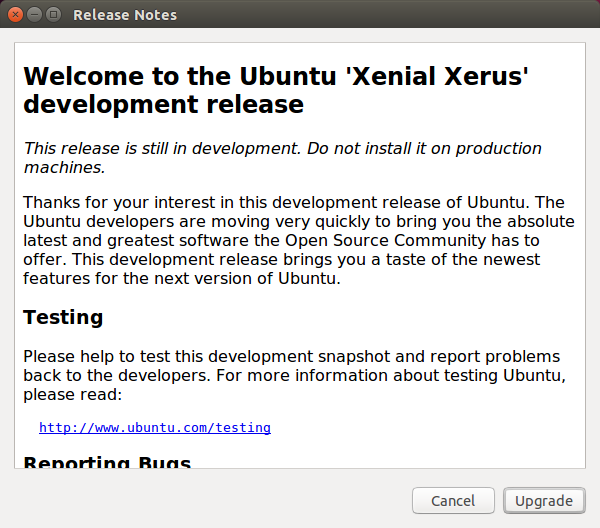
Be mindful that this release is still in development stage. You have to wait for couple of hours to get the final stable version.
Few minutes later, the software updater will ask you to start the upgrade. Click Start upgrade to continue.

Now, the distribution upgrade will download new packages. Sit back and grab a cup of coffee. It will take a while depending upon your Internet connection speed.


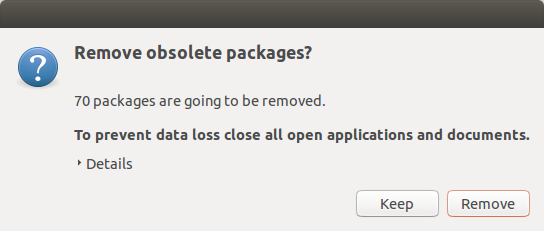
Close Remove to remove obsolete packages.
Finally, click "Restart Now" button to complete the upgrade process.
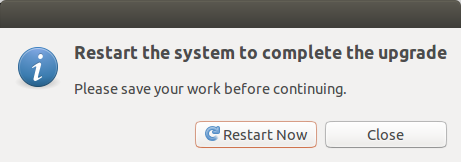
Congratulations. Ubuntu 15.10 has been successfully upgraded to version 16.04.
Log in to the newly upgraded Ubuntu 16.04 desktop.
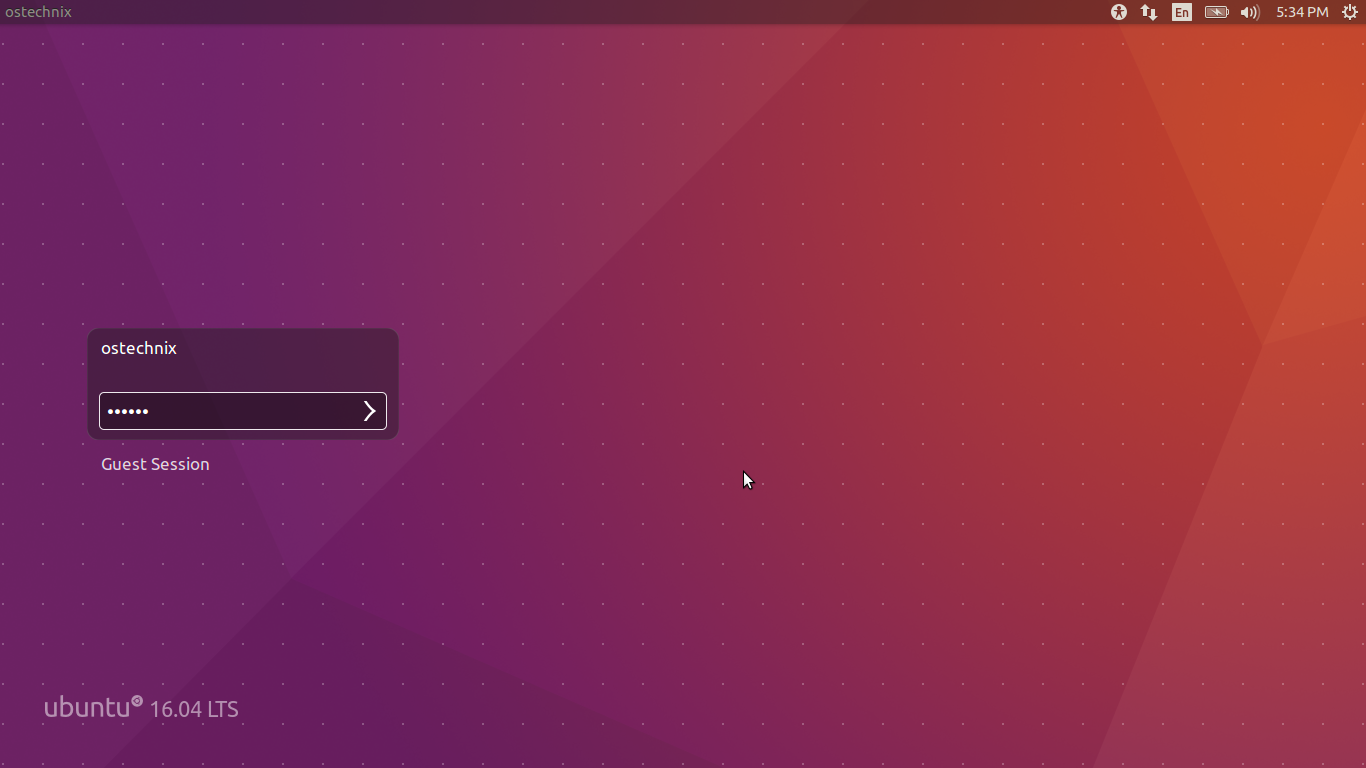
Here it is how my Ubuntu 16.04 LTS desktop looks like.

To view the Ubuntu desktop details, go to System settings > Details from Unity dash.
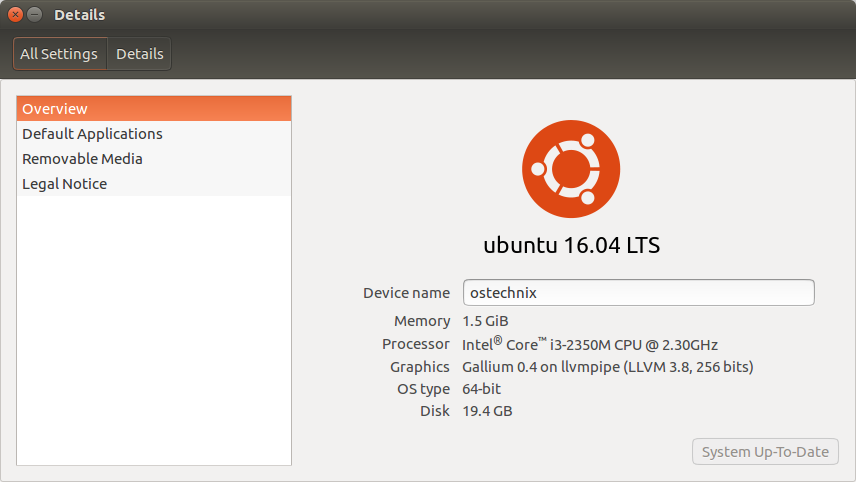
From command line, you can view the system details using command:
cat /etc/*-release
Sample output:
DISTRIB_ID=Ubuntu
DISTRIB_RELEASE=16.04
DISTRIB_CODENAME=xenial
DISTRIB_DESCRIPTION="Ubuntu Xenial Xerus (development branch)"
NAME="Ubuntu"
VERSION="16.04 (Xenial Xerus)"
ID=ubuntu
ID_LIKE=debian
PRETTY_NAME="Ubuntu 16.04"
VERSION_ID="16.04"
HOME_URL="http://www.ubuntu.com/"
SUPPORT_URL="http://help.ubuntu.com/"
BUG_REPORT_URL="http://bugs.launchpad.net/ubuntu/"
UBUNTU_CODENAME=xenial
To view the Kernel details, run:
uname -a
Sample output:
Linux ostechnix 4.4.0-15-generic #31-Ubuntu SMP Fri Mar 18 19:08:31 UTC 2016 x86_64 x86_64 x86_64 GNU/Linux
That’s it. Start using Ubuntu 16.04 LTS
Ubuntu 16.04 LTS Server Upgrade
We saw how to upgrade to Ubuntu 16.04 desktop. Now, we will see how to upgrade from Ubuntu 15.10 server to Ubuntu 16.04 server.
First, Install the update-manager-core package if it is not installed yet using command:
sudo apt-get install update-manager-core
Then, Edit the file /etc/update-manager/release-upgrades,
sudo nano /etc/update-manager/release-upgrades
and set Prompt=normal or Prompt=lts as shown below.
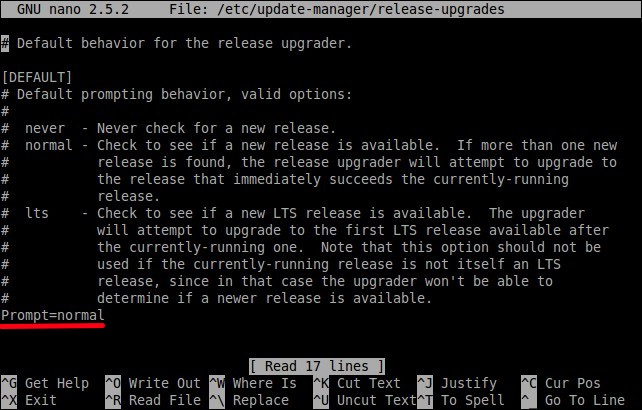
# Default behavior for the release upgrader.

[DEFAULT]
# Default prompting behavior, valid options:
#
#  never  - Never check for a new release.
#  normal - Check to see if a new release is available.  If more than one new
#           release is found, the release upgrader will attempt to upgrade to
#           the release that immediately succeeds the currently-running
#           release.
#  lts    - Check to see if a new LTS release is available.  The upgrader
#           will attempt to upgrade to the first LTS release available after
#           the currently-running one.  Note that this option should not be
#           used if the currently-running release is not itself an LTS
#           release, since in that case the upgrader won't be able to
#           determine if a newer release is available.
Prompt=normal
- Normal – Check to see if a new release is available. If more than one new release is found, the release upgrader will attempt to upgrade to the release that immediately succeeds the currently-running release.
- LTS – Check to see if a new LTS release is available. The upgrader will attempt to upgrade to the first LTS release available after the currently-running one. Note that this option should not be used if the currently-running release is not itself an LTS release, since in that case the upgrader won’t be able to determine if a newer release is available.
Ubuntu 16.04 is the next available version to Ubuntu 15.10, so I simply left it as normal.
Now, it is time to upgrade your server system to latest version using the following commands:
sudo apt-get update && sudo apt-get dist-upgrade
Reboot your system to apply the updates.
sudo reboot
In case you're upgrading via SSH, it is better to start the upgrade session within screen session. Because in case of any SSH connection failure during upgrade process, you can easily reconnect with the upgrade session.
To install the screen tool, run:
sudo apt-get install screen
Then start the screen session using command:
screen
In case of any failure, you can re-attach to the upgrade session with command:
screen -Dr
Now, start the upgrade process with command:
sudo do-release-upgrade -d
Type Y and press ENTER.
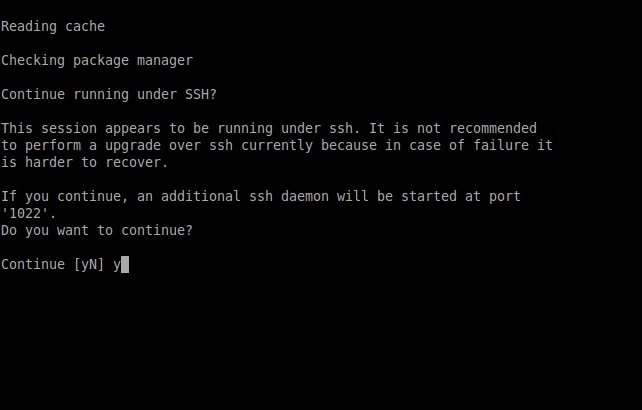
Press ENTER again.
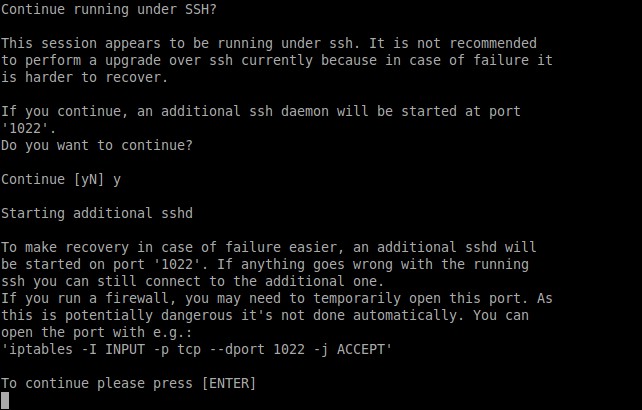
After a while, you'll be asked to continue the upgrade process. Type Y and press ENTER to continue.
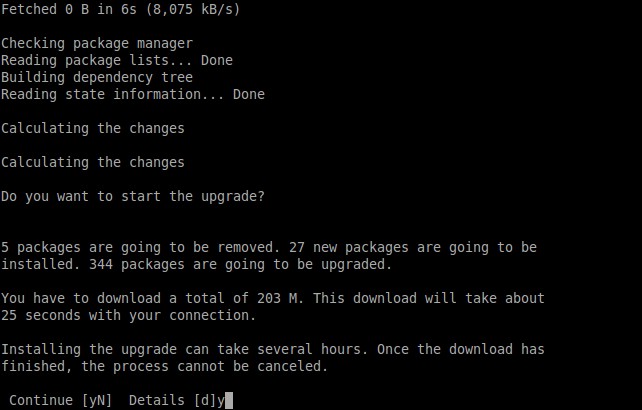
The upgrade process will take place. Sit back and grab a cup of coffee.
It will take from few minutes to hours depending upon the speed of your Internet.
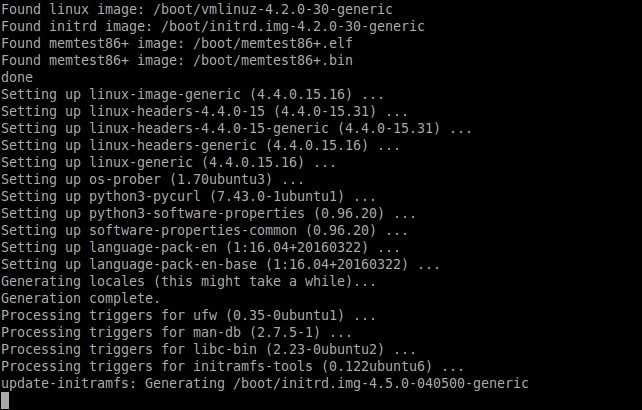
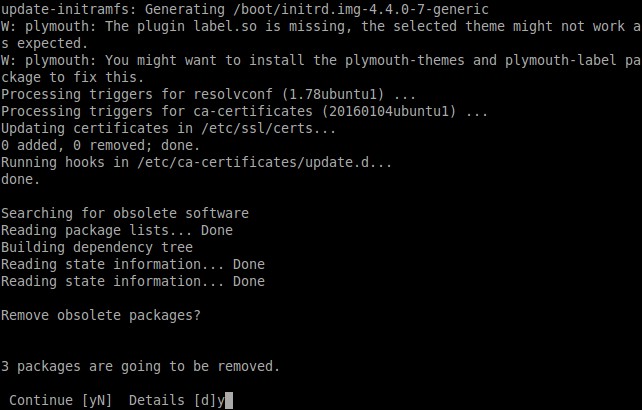
Once the latest packages are downloaded and installed, type Y and press ENTER to remove the obsolete packages.
Finally, to finish the upgrade type Y and press ENTER.
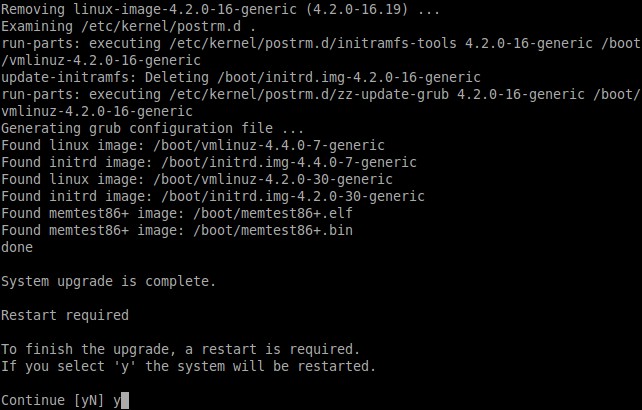
Congratulations! Welcome to Ubuntu 16.04 LTS Xenial Xerus development version.
![Ubuntu 16.04 server [Running] - Oracle VM VirtualBox_005](https://ostechnix.com/wp-content/uploads/2016/03/Ubuntu-16.04-server-Running-Oracle-VM-VirtualBox_005.jpg)
Upgrading to Ubuntu 16.04 LTS version is a piece of cake. The upgrade process for both server and desktop went smooth without a single issue. It's time to explore what's new in Ubuntu 16.04 server.
Again, I warn you not to use it on your production Server or desktop. It is still in development stage.
I will be here soon with another interesting article. Until then stay tuned with us and share this article to your social networks.
Cheers!!

2 comments
One correction. This release will be available in stable version in April not August 2016 as stated
Yeah, you’re right. Updated the article now. Thanks for pointing it out.