
I can't afford VPS, are there any free public servers that gives free SSH access to learn Linux and do stuffs? Yes! SDF Public Access UNIX System provides free Shell account, so that you can explore and learn various Unix commands for free. SDF, acronym for Super Dimension Fortress, is a non-profit public access UNIX shell provider on the Internet. It offers free Unix shell accounts to all, around the world. SDF free Unix shell account allows you to create/browse 'gopherspace', browse 'webspace', store files locally, send and receive email, use icq/aol IM messengers to chat locally, read/post to the SDF bboard, run whois, ping, traceroute, nslookup, dig, geoip and other network utilities, multiuser games, navigate the UNIX filesystem and much more!
This brief guide explains how to sign-up a free account at SDF and how to use it.
SDF Public Access UNIX System - Free Shell Account And Shell Access
Creating a new account
Creating a new account at SDF is fairly straight forward, and it is completely free for limited period of time. To use this service, You need to connect to SDF service via an SSH or TELNET client and login as the 'new' user.
Unix/Linux users can create a new account by typing the following command from their Terminal:
ssh new@sdf.org
You will be greeted with the following message. Press ENTER key to continue and type "new" (without quotes, of-course) to sign-up for a new account. Then, press Backspace key to go to the next wizard.
You will now be connected to NEWUSER mkacct server.
Please login as 'new' when prompted.

[RETURN] ## Press ENTER Key.

THIS MAY TAKE A MOMENT .. Trying 205.166.94.20...
Connected to 205.166.94.20.
Escape character is 'off'.

NetBSD/amd64 (ol) (pts/30)

login: new ## Type new to sign-up.

Welcome to the SDF Public Access UNIX System - Est. 1987
You are the 52nd guest today, logged in on 24-Jan-17 07:56:11.

Please press your BACKSPACE key:
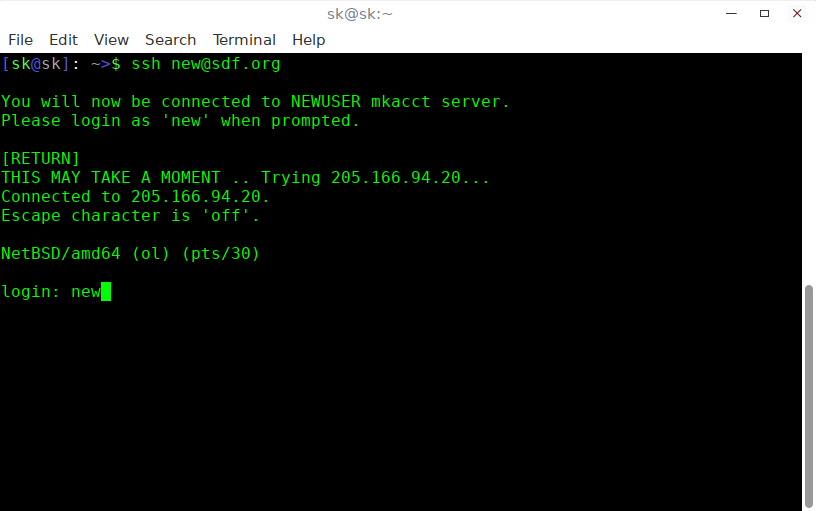
In the next screen, you will see the details such as what is SDF free shell account, and what commands you can use. Read the message carefully and hit ENTER key to continue.
In the next screen, you need to choose a LOGIN name.
First, you need to choose a LOGIN. A LOGIN allows you to LOG IN
to the system. Your LOGIN can be 1 to 16 characters in length and
can be composed of alpha-numeric characters (middle period is OK).

What would you like to use for your login? ostechnix ## Enter login name.
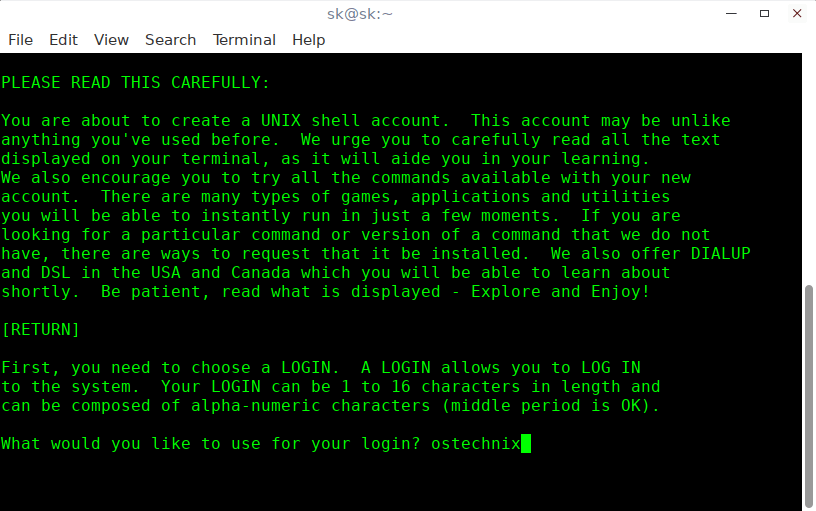
Type Yes to agree with SDF terms and conditions and hit ENTER to continue.
I agree with your policy and accept it (yes/no): yes
Next, You'll be asked to answer a series of questions such as your name, Zip code. Answer them accordingly and hit ENTER to continue. You can press CTRL+U keys to clear the output and re-enter the commands at anytime.
Please answer the following questions as you see fit.

CTRL-U will clear input ..

Your Name: Senthilkumar
[...]
In the next wizard, It will ask you a confirmation message to create the account. This is the list of SDF free services to you. Note down these and type Y to continue. Email id is your username to login to your SDF shell account from commandline.
Your SDF Service addresses - PLEASE SAVE THESE!
 ========================================================
 ssh/telnet/ftp : sdf.org
 IRC : irc.sdf.org
 Jabber XMPP : jabber.sdf.org
 WWW URL : http://ostechnix.sdf.org
 WWW Gopher : gopher://sdf.org/users/ostechnix
 Webmail : https://wm.sdf.org
 StatusNet : http://sdf.org/status
 Deskshots : http://deskshots.org
 20GB Image Gallery : http://sdf.org/g
 20GB Video Gallery : http://toobnix.org
 MineCraft : mc.sdf.org
 BZFlag : sdf.org:5154
 SDFMud (SMAUG) : http://sdf.org/mud
 ANONRADIO : http://anonradio.net
 ========================================================

Login : ostechnix Senthilkumar
E-mail : ostechnix@sdf.org

Create the 'ostechnix' account? (y/n) y
Set the password for the new account.
[...]
New password:
Re-type password:
Congrats! Your new shell account has been created. Hit ENTER to continue.
This is how your Unix shell account prompt looks like. From here, you can start to do whatever you're allowed to do.
 Type 'help' for Commands.
 Type 'com' to chat with other users.
 Type 'ttytter' to listen to Twitter Tweets anonymously.
 Type 'mud' to play the SDFmud.
 Type 'mkhomepg' to set up your personal website.

 Did you know you can validate your account and gain weekend IRC access
 by making a donation of $1 to $3? Type 'validate' for more info!

 faeroes:/sdf/udd/o/ostechnix>
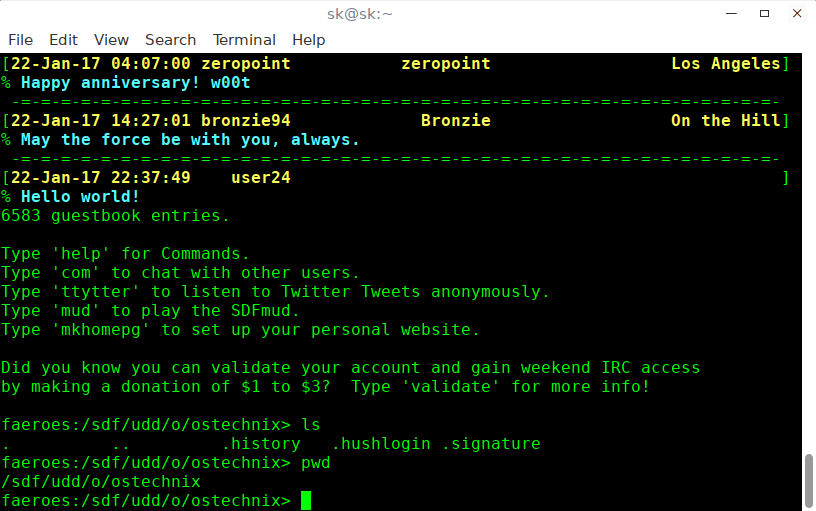
Please note that the free account will expire in 666 days. You need to validate your account by paying a small donation $1 to 3$ to make it permanent. You can also become a permanent LIFETIME member of SDF by making a onetime donation of $36 and get additional services.
Using SDF Free Shell Account
Now, let us explore few available options and see what it works.
If you don't know how to use it, just type "help" to see what it offers.
SDF psh Version 8 - *PREVALIDATED SHELL ACCOUNT*

 what - what can I use this account for?
 unix - a listing of UNIX commands available to you NOW
 how - information on increasing membership
 teach - using SDF in a classroom setting
 dialup - information about SDF dialup service
 arpa - about lifetime arpa membership
 bboard - sdf user message boards
 commode - chat with other users online
 ysm - chat on the ICQ network
 bsflite - chat on the AIM network
 msnre - chat on the MSN network
 ttytter - listen to Twitter tweets anonymously
 lynx - browse the WWW textually or access GOPHER
 bksp - set your BACKSPACE key
 software - display software programs installed on the system
 quote - get a real time stock quote
 games - a listing of available games
 thxmoo - connect to the THXMOO
 mud - connect to the SDFmud
 validate - gain additional shell access (also try 'user' for details)

faeroes:/sdf/udd/o/ostechnix>
As you see in the above output, you can view the list of available Unix commands, chat with other users, chat with MSN and AIM network, listen to Twitter tweets, display the list of programs installed, view the available games and so on.
If you're wondering what is this free shell account for, just type "what" in the shell prompt.
I Entered "unix" to view the list of available commands.
faeroes:/sdf/udd/o/ostechnix> unix
Sample output:
UNIX command summary

 cd {dir} - Change Directory
 pwd - print working (current) directory
 ls - LiSt directory (try ls -la)
 cat {file} - conCATenate (view) a file
 mkdir {name} - create a directory
 rm {file} - remove a file or directory
 mv {file) - move a file or directory
 chmod perm {file} - set permission bits for a file or directory
 edit {file} - edit a file in your directory
 ps - Process Status (try ps -aux)
 passwd - Change your password
 disk - show current disk usage
 uptime - show system status
 df - print system storage
 freeirc - IRC access is free on Sundays
 profiles - Join the ASCII social network
 dict {word} - query the online dictionary
 cal - calendar (try 'cal 1752')
 finger {user} - show info about a user (try who or w)
 chfn - change your full name
 chsh - change your shell
 ping {host} - test network connectivity to a host
 traceroute {host} - view the route to a remote host
 man {cmd} - read a manual page for a command.
 dig / host - DNS utilities
 geoip - Country lookup on an IP
 expire - calculate your account expiration
 domains - list domains available for use on SDF
 mkhomepg - manage your own webpage space
 mkgopher - manage your own gopherspace
 upload - upload a file using ZMODEM (works w/ TeraTERM)
 com - multiuser online chat
 msg {user} - send a message to another user online
 bboard - bulletin board
 faq - frequently asked questions
 mail - read/send email (also try http://webmail.freeshell.org)
 lynx {url} - browse webpages
 links {url} - browse webpages (w/ frames support)
 gopher {url} - browse gopherspace
 talk {user} - talk to another user
 url {user} - look up a user's URL
 ysm - chat on the ICQ network
 pkg_info - list ported/installed software packages
 whois {domain} - query the INTERNIC WHOIS database
 logout - logoff

faeroes:/sdf/udd/o/ostechnix>
From now on, you can use this Login as the way use a local Unix account.
To exit from the SDF account, just type "logout".
For more details, visit SDF website link given below.
Also, refer the SDF tutorials section to learn the SDF basics.
I suggest you to use this service carefully, and be responsible for your activities. SDF has the rights to terminate your account at anytime.
As far as I observed, SDF Unix shell accounts seems bit slower and this service doesn't offer much. My recommendation to all those who wants to learn Unix/Linux is to setup VirtualBox and explore different Unix-like operating systems in your local desktop. This is much better than using VPS.

1 comment
Thenk you for ur work