
This detailed tutorial explains what Reptyr is and how to move a running process to a new terminal using Reptyr command in Linux and Unix operating systems.
Table of Contents
Introduction
Let's say you are running an important task on a remote server through an SSH session from your local machine.
When you started the task, you didn’t expect it to take a long time. Now you want to leave it running on the remote server, close the SSH session without stopping the job, and reconnect later, maybe even the next day, to check on it.
Of course, you could have started the task inside a tmux or GNU Screen session and simply detached before closing SSH. That would keep the process alive.
But if you forgot to do that, you run into a problem. Once you close the SSH session, the running process is usually terminated as well. There’s no straightforward way to reattach to it afterward.
Why?
When you start a process in a terminal, it is attached to that terminal's TTY. If the SSH session drops, the kernel sends signals like SIGHUP, and many processes exit.
So what can you do in this situation?
This is where reptyr comes in handy.
What Is Reptyr?
Reptyr is a command line tool for moving running processes between ptys.
Using Reptyr, we can easily migrate or move a long-running process from one Terminal to another Terminal instantly without terminate it. Reptyr uses ptrace system call to attach to the target program.
Just start a long-running process on your remote system via SSH session from your local machine, and close the SSH session, go home, and re-attach the running process on the next day.
Reptyr can be useful in the following scenarios:
- Long-running builds (
make,gcc, etc.) - Data processing jobs
- Remote scripts started without tmux/screen
- Recovering work after forgetting to use a multiplexer
Reptyr is an opensource command line application. It supports both Linux and FreeBSD.
Install Reptyr in Your Remote Linux Systems
First of all, make sure you've installed tmux or screen in your remote systems in-order to attach a running process to a new terminal. If you haven't installed tmux/screen yet, refer the following links.
Tmux Commands Examples To Manage Multiple Terminal Sessions In Linux
Screen Command Examples To Manage Multiple Terminal Sessions
Next, you should install Reptyr application on your REMOTE systems.
To install Reptyr in Arch Linux and its derivatives such as Endeavour OS and Manjaro Linux, run:
sudo pacman -S reptyr
In Debian, Ubuntu, Linux Mint, Pop!_OS, run the following command to install Reptyr:
sudo apt install reptyr
On Fedora, RHEL, CentOS, AlmaLinux, and Rocky Linux, reptyr can be installed from EPEL repository.
To install EPEL repository in RHEL-based systems, run the following commands:
sudo dnf config-manager --set-enabled powertools
sudo dnf install epel-release
After enabling EPEL repository, run the following command to install Reptyr:
sudo dnf install reptyr
Install Reptyr from Source
Install the necessary development tools as described in the following link.
Git clone reptyr repository with command as root or sudo user:
git clone https://github.com/nelhage/reptyr.git
Go to the reptyr directory:
cd reptyr/
Run the following commands to compile and install it.
make
sudo make install
I compiled and installed Reptyr from source in CentOS server edition, and it worked just fine as described above.
Move a Running Process from One Terminal to Another without Closing It using Reptyr
Make sure you installed the following on your remote Linux systems.
- Reptyr.
- Tmux or Screen.
Example 1:
For demonstration purpose, I will be using the following system.
- Remote system - Debian 11 Bullseye (username - ostechnix, IP - 192.168.1.20)
Step 1: SSH into the Remote System
Usually, we connect to the remote server from any local system via SSH as shown below.
ssh remote_username@IP_of_remote_system
I am going to SSH into my remote system (AlmaLinux 8) from my local system (Debian 11).
ssh ostechnix@192.168.1.20

Here, "ostechnix" is the remote system's username and "192.168.1.20" is the remote system's IP address. Replace these two values with your own.
Step 2: Start a Long-running Process
After connecting to the remote system, start any long-running process. I will start the top command.
top
Here, the "top" command is running in my AlmaLinux connected via SSH. Let us call it Terminal 1.
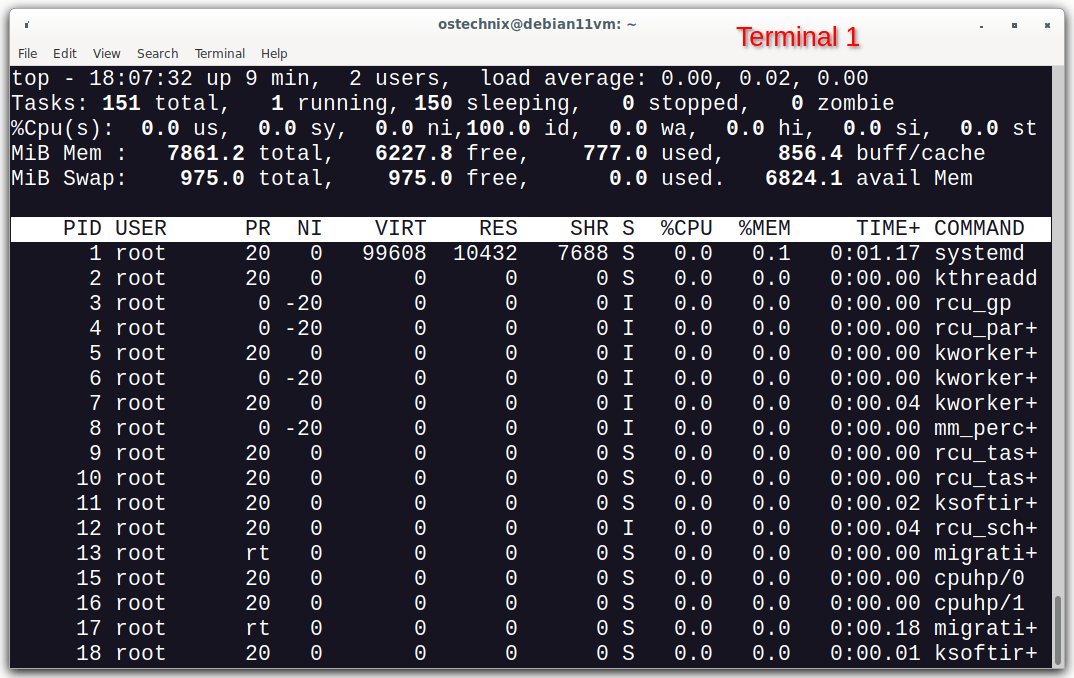
As you see in the above output, I run "top" command in Debian 11 virtual machine via SSH from my local system. The top command will keep running until we manually stop it by pressing CTRL+C.
What we are going to do now is simply move the top command process inside the tmux or screen session of our remote system (i.e. Debian 11) using Reptyr. And then we finally close the SSH session in our local system. During the transition, the top command will keep running without any interruption.
Step 3: Move the Process to Background
Now press CTRL+Z to put the process in the background. And then run bg to resume the process in the background.
bg
Verify the running background jobs with jobs command:
jobs -l
Here, the -l flag will list the PID of the background job.
You will see the following output.
[1]+ 1972 Stopped (signal) top

Note down the PID. We will need it later to attach the process to remote terminal. Here, the PID of top command is 1972.
Step 4: Disown the Process
Disown the running process from the current parent using command:
disown top
Sample output:
-bash: warning: deleting stopped job 1 with process group 1972
Now the jobs -l command will not show the job anymore, but the ps -a command will.
$ ps -a
    PID TTY          TIME CMD
   1972 pts/1    00:00:00 top
   2061 pts/1    00:00:00 ps
Step 5: Start a Tmux or Screen Session
Start a new Tmux or Screen session in the same terminal or new terminal window. For the sake of easy understanding, I am going to call the new tmux session as Terminal 2.
tmux
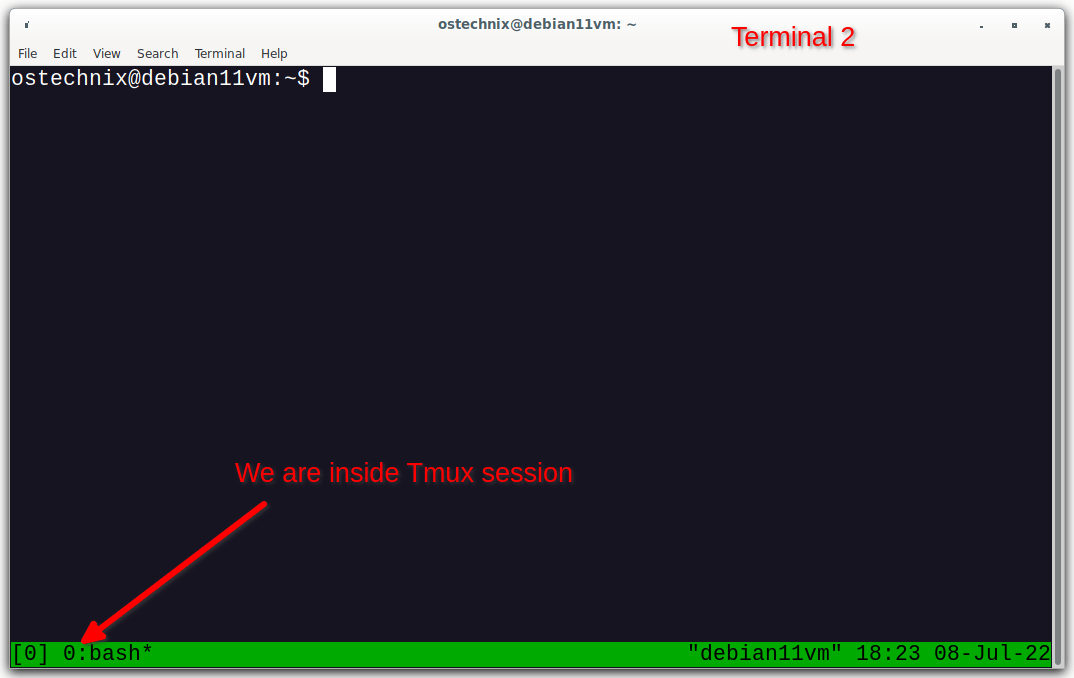
Please note that you should start the tmux/screen multiplexer in the remote(Debian 11) console, not in our local system's console.
Step 6: Attach to the Background Process
Remember we put the top command in the background in Step 3. The PID of the background process is 1972. If you don't remember the PID, run ps -a command.
Now, attach to the background process with Reptyr using command:
reptyr 1972

That's it. We have successfully moved the background process inside the tmux sesssion.
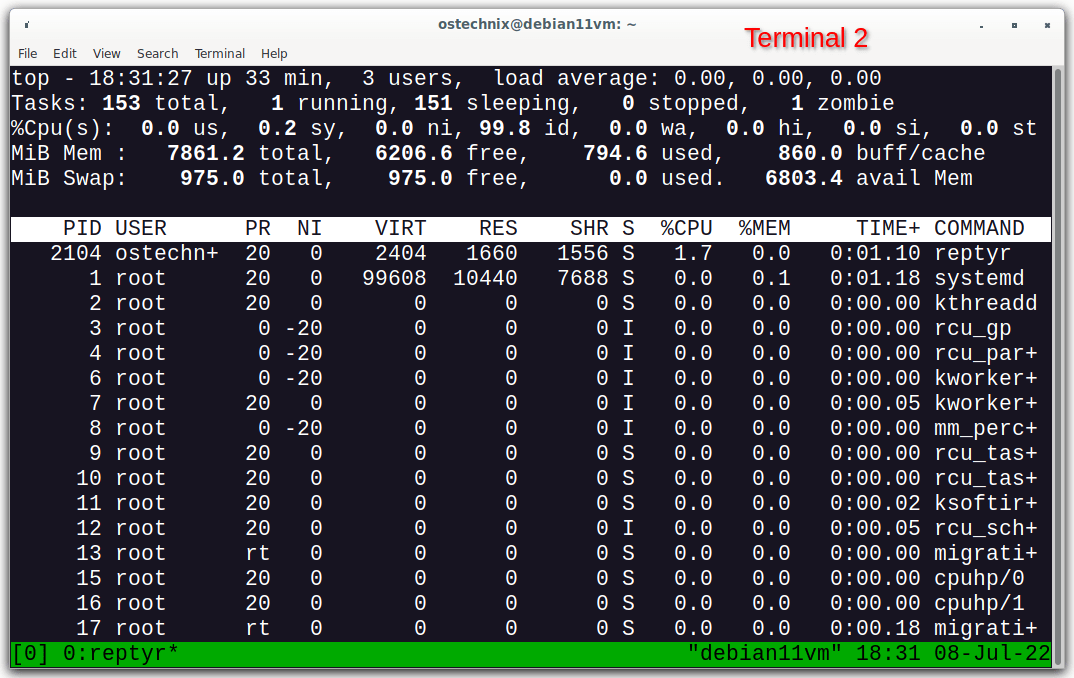
You can now safely detach from the Tmux session by pressing CTRL+B and D. It will only close the tmux session, but not the process(top command) which is running inside of it.
We are back to the Terminal 1. Verify the list of active Tmux panes using command:
$ tmux list-panes -F '#{pane_active} #{pane_pid}'
1 2072
Here,
- pane_active will show 1 if active pane.
- pane_pid is the PID of first process in pane.
Step 7: Close the SSH Connection
You can now close the SSH session. The process (top command in our case) will keep running inside the Tmux session of your remote system as long as your remote system is up. Closing the SSH connection will not terminate the process.
Step 8: Reattach to Tmux
To reattach to the process, simply SSH to your remote system:
ssh remote_user@remote_ip
And run the following command to attach the tmux session where the top process is still running.
tmux attach

You will now see the running process inside the Tmux session.
This way you can start any number of Tmux panes and move the running processes inside to each pane.
Let me show you another example.
Example 2:
In this example, I use how to move a running process (E.g. wget) in CentOS system.
Step 1: SSH into Remote system.
Step 2: After you connected to the remote system, start a long-running process. For example, I am going to download Ubuntu 16.04 desktop ISO with wget command.
wget http://cdimage.ubuntu.com/daily-live/current/xenial-desktop-amd64.iso
Sample output:
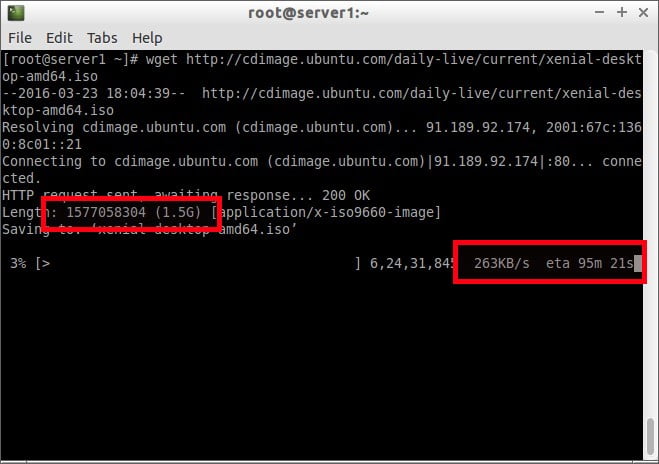
As you see in the above screenshot, the total download size is 1.5GB, and it will take more than 90 minutes to complete.
I don't want to wait that much longer, and also I don't want to quit the remote job either.
So, what I am going to do now is start a screen or tmux session in a new terminal, use reptyr utility to grab the running process inside the screen or tmux session. Finally, I will terminate both ssh sessions, and reattach to the running process whenever I want.
Step 3: Open a new terminal window or new tab, and start a screen or tmux session by typing screen or tmux in the terminal:
screen
or
tmux

As you see in the above screenshot, the screen session has been started and it is running.
Step 4: Now, let us find the the running processes from the new Terminal by using the following command:
ps -a
Sample output:
 PID TTY TIME CMD
 2320 pts/0 00:00:11 wget
 2343 pts/1 00:00:00 screen
 2358 pts/2 00:00:00 ps
Note down the PID for the wget process, and attach the running process inside screen session using command:
reptyr 2320
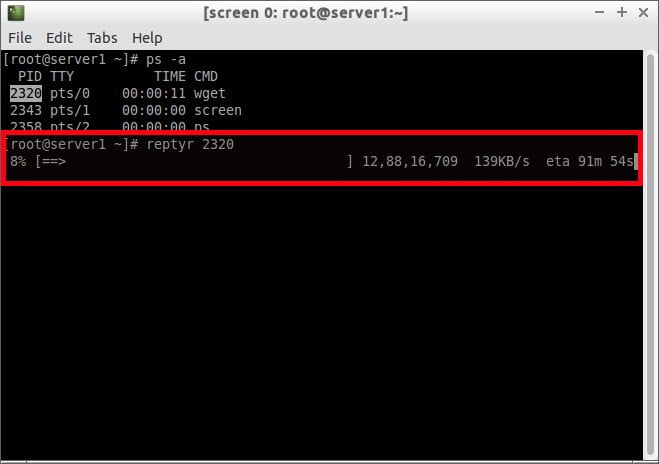
Done! As you see in the above screenshot, wget process has been moved (migrated) from old terminal to the new terminal window (the one running with the screen session).
Once you moved the running process from the original terminal (i.e. remote terminal), it will be closed immediately in the local terminal, and start to continue where we left it off in the new terminal.
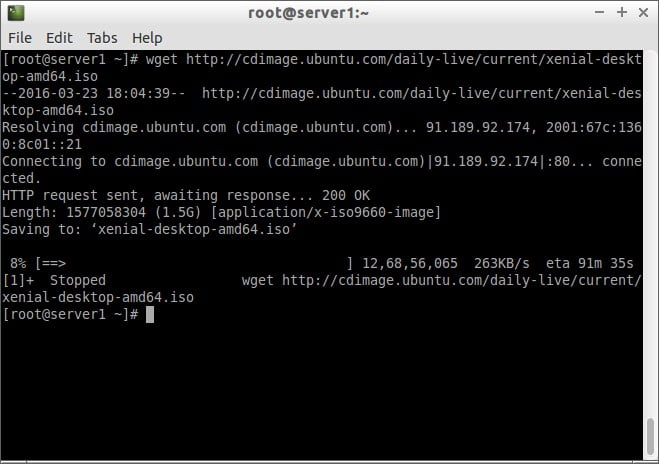
Step 5: Now, you can safely detach or close the terminal and the job will continue running on your remote server.
To detach from screen session, press CTRL+A and D. If it is Tmux session, press CTRL+B and D.
After you detached from screen session, you will see the following output.
[detached from 2344.pts-1.server1]
Step 6: To reattach the running process, SSH to your remote system:
ssh root@192.168.1.150
Here. 192.168.1.150 is my remote server IP address.
Step 7: And run the following if you use screen session:
screen -Dr
For tmux session, run:
tmux attach
Voila! The running process has been reattached again, and you'll see there that the download process is still running.

As you see in the above screenshot, wget job isn't interrupted or terminated, and is still running. It will continue to run as long as your remote system is up and running.
Troubleshooting Reptyr
Sometimes, I use Reptyr command line tool to move long-running processes between terminals without closing it. This tool is very helpful when you run a task inside a tmux or screen session.
When I try to move a running process to another terminal in my Ubuntu 24.04 LTS system, I got this error:
Unable to attach to pid 3282: Operation not permitted
The kernel denied permission while attaching. If your uid matches
the target's, check the value of /proc/sys/kernel/yama/ptrace_scope.
For more information, see /etc/sysctl.d/10-ptrace.conf
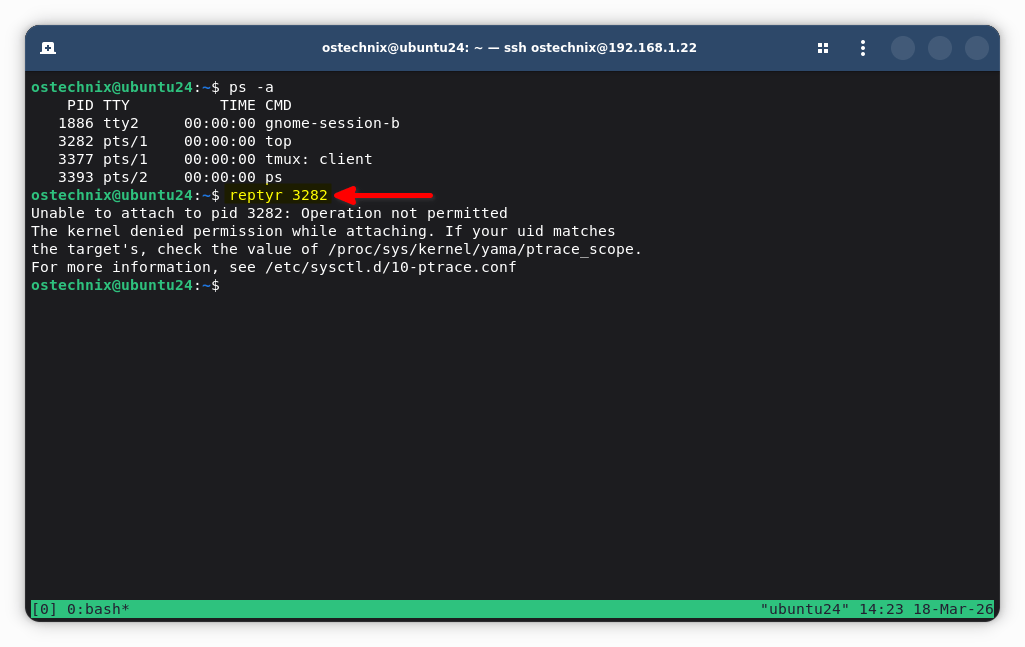
This is a common issue with reptyr on modern Linux systems like Ubuntu. The error is not really about reptyr itself, It's actually caused by a kernel security feature.
In the following section, we will show you how to fix the operation not permitted error when using reptyr in Ubuntu Linux.
What is Actually Happening
Linux uses a security module called Yama to restrict ptrace (the mechanism reptyr relies on to "grab" a process and attach it to another terminal).
The setting:
/proc/sys/kernel/yama/ptrace_scope
controls how strict this is.
Typical values:
0→ no restrictions (reptyr works)1→ restricted (default on Ubuntu)2or3→ very restrictive
On Ubuntu, it's usually 1, which blocks reptyr, even if the process belongs to the same user.
How to Fix Unable to attach to pid: Operation not permitted Error
Quick fix (temporary):
Run:
sudo sysctl kernel.yama.ptrace_scope=0
Then retry:
reptyr <PID>
This change resets after reboot.
Permanently fix:
Edit the ptrace config file:
sudo nano /etc/sysctl.d/10-ptrace.conf
Change:
kernel.yama.ptrace_scope = 1
to:
kernel.yama.ptrace_scope = 0
Apply it using command:
sudo sysctl --system
Important caveat:
Lowering ptrace_scope:
- makes debugging easier
- but reduces protection against certain attacks (like process inspection or credential scraping)
So:
- it is OK on a personal machine
- but not ideal on shared or production systems
If it still fails, please check:
cat /proc/sys/kernel/yama/ptrace_scope
Also ensure:
- Same user owns the process,
- You're not inside a restricted environment (e.g., containers, snaps, or systemd services).
Summary
To summing up, Reptyr is very important and also a quite useful tool for Linux users and system administrators of any level. Tools like reptyr use ptrace to reattach that process to a new TTY (like one inside a multiplexer), so it survives.
In case you fed up with a process that took a really long time to complete, Reptyr will definitely be helpful. Just open a new Terminal window, SSH to your remote server, find the running processes ID, and safely move them inside the screen or tmux sessions, and exit from the SSH session.
Suggested Read:
- Autostart Tmux Session On Remote System When Logging In Via SSH
- How To Display Process Information Using Procs On Linux
- Tmate - Share Your Terminal Instantly To Anyone From Anywhere
- How To Change Linux Console Font Type And Size
- How To Lock Virtual Console Sessions On Linux
- How To Switch Between TTYs Without Using Function Keys In Linux
Resources:

5 comments
Thank you very much! This is a very useful command. Thanks for sharing.
You need to use – sudo reptyr -T #pid – if the process has subprocesses like when running MAKE, which is always the one that I forget to Screen
Hi,
Very nice and useful article
bests
I tried it on Ubuntu Linux but it failed with this error:
=========
xyz@ubuntu2404:~$ reptyr 840522
Unable to attach to pid 840522: Operation not permitted
The kernel denied permission while attaching. If your uid matches
the target’s, check the value of /proc/sys/kernel/yama/ptrace_scope.
For more information, see /etc/sysctl.d/10-ptrace.conf
xyz@ubuntu2404:~$
Please try this work around and let us know if it works.
Edit the config file:
sudo nano /etc/sysctl.d/10-ptrace.confChange:
kernel.yama.ptrace_scope = 1to:
kernel.yama.ptrace_scope = 0Apply it:
sudo sysctl --system